Guides
How to redact faces in CCTV video for disclosure
Before CCTV is disclosed or released, third parties usually have to be obscured. Here is how to redact faces in video and keep a record that stands up.
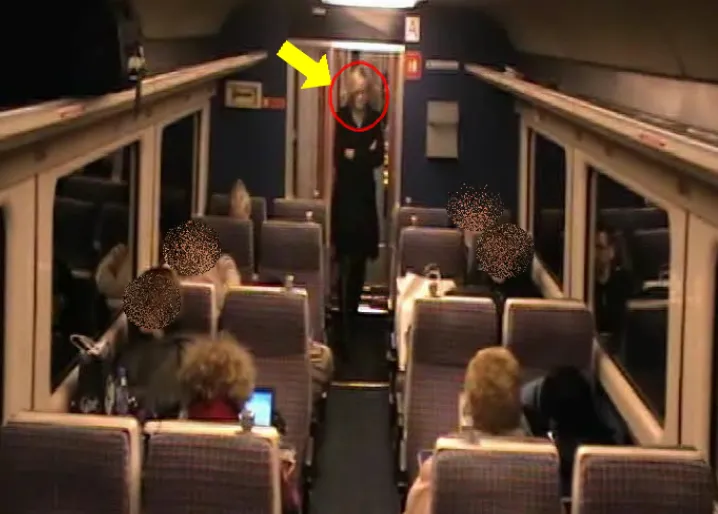
To redact a face in CCTV video, you mark the person in the frame, track them across every frame they appear in, and apply a mask such as a blur, pixelation or black box. For evidence, the original must stay untouched and every redaction must be logged and checked before export. In Kinesense REPORT you can track and mask each witness or bystander in seconds, then review a list of every obscured object before the video leaves the system.
When video has to be redacted
Third parties often appear in footage that has to be shared outside the investigation, for example:
- Disclosure to the defence, where people unconnected to the case should not be identifiable.
- Subject access requests under GDPR, where someone asks for footage of themselves and everyone else must be obscured.
- Freedom of Information requests and public appeals.
What exactly has to be obscured depends on the request and the law that applies. GDPR & CCTV: what do I have to redact? covers that question. This guide covers how to do it.
Step 1: Work on a copy
Never redact the original. Kinesense preserves and hashes the original on import, and all redaction happens on the working copy, so the unredacted evidence is always available to the investigation.
Step 2: Mark the person and track them
Find the first frame where the person appears and place a mask over them. Then move along the timeline and adjust the mask where they move. Kinesense joins the points in between, so you only correct the mask where the movement changes direction or speed.
Redaction can be automatic or manual: let the software track the object, then correct it by hand where needed. Check the edges of the clip, where people enter and leave the frame.
Step 3: Choose the effect
Choose what to obscure and how:
- Inside the shape hides the person, the usual choice for bystanders.
- Outside the shape hides everyone else and keeps one person visible, the usual choice for a subject access request.
- Effect type: blur, black out, or one of several pixelation styles, each adjustable in strength.
How to blur faces in video for GDPR subject access requests shows each option step by step.
Step 4: Check every redaction before export
Before exporting, review the list of every obscured object and play the clip through. A face visible for even one frame defeats the redaction. Check reflections, screens and other camera angles of the same moment.
Step 5: Export with a record of what was done
Export the redacted clip with its disclosure report. Kinesense records every action automatically, so the log shows what was redacted, by whom and when, and the original’s hash shows the source was not altered.
Redaction and the rest of the exhibit
Redaction is usually one step in building an exhibit. In Kinesense REPORT the same case holds the bookmarks, clarification, storyboard and disclosure report, so the redacted clip and its record stay together. See Kinesense LE for the full workflow, or book a demo to try it on your own footage.