
Guides
The CCTV File Format Minefield: A 2026 Field Guide
How to identify, play and preserve CCTV footage in 2026: proprietary DVR and NVR exports, smart codecs, doorbell and phone video, standards and integrity.
Updated
Still a minefield, just a different one
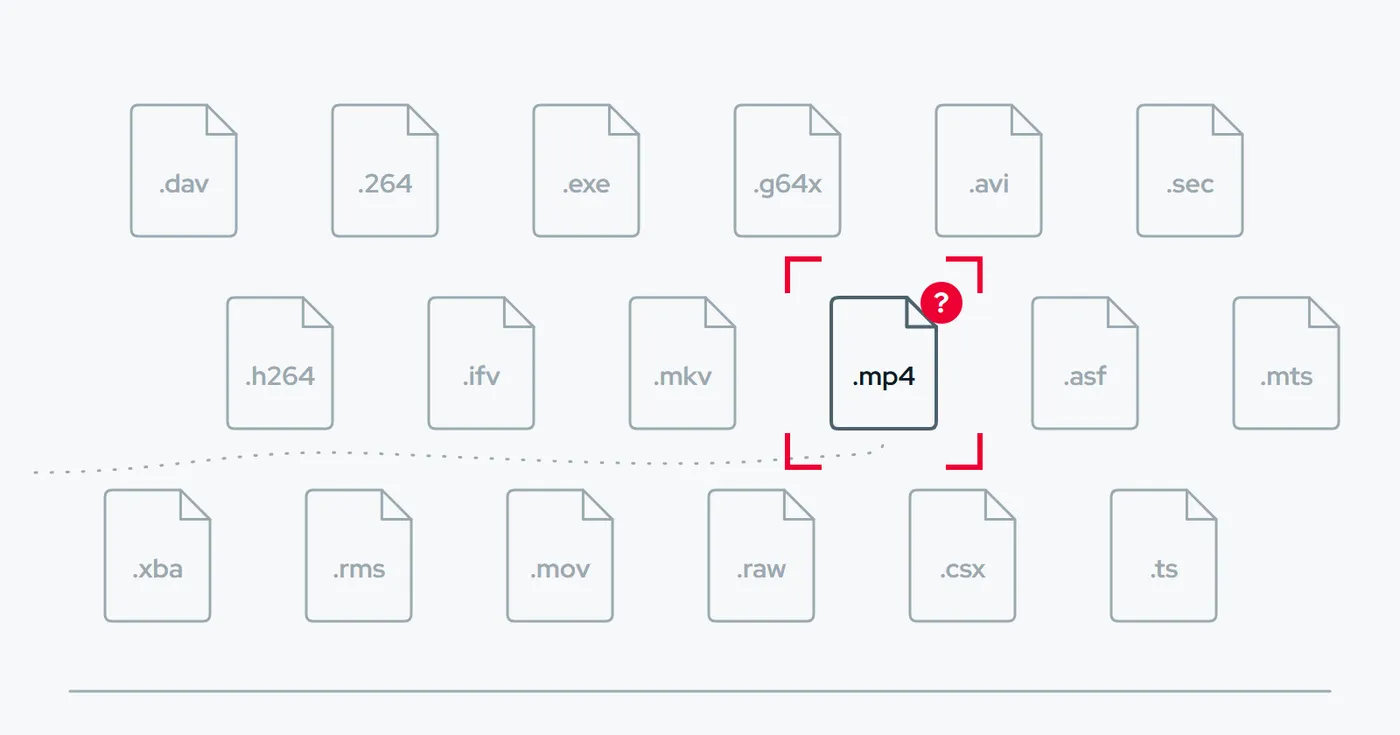
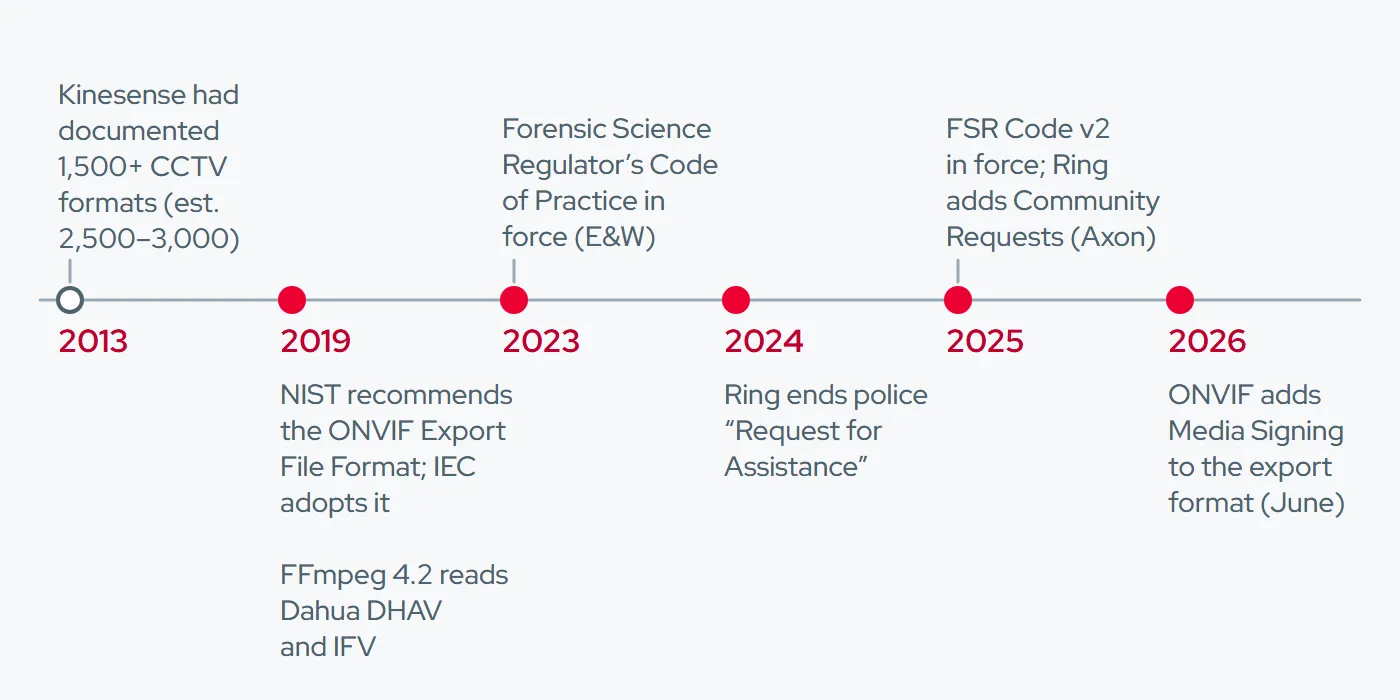
Getting video evidence to play is still the first hurdle in most investigations, but the files now come from far more places than a DVR. In 2013 we wrote that Kinesense had documented more than 1,500 CCTV file formats and estimated 2,500 to 3,000 in existence.
The source mix has changed even more than the count. A typical case file in 2026 might hold:
- an NVR export from a shop,
- a clip downloaded from a neighbour’s doorbell camera app,
- phone video uploaded by a member of the public,
- and body-worn footage from the attending officer.
Each arrives by a different route, with different metadata and different traps.
The standards and regulation picture has also moved. There is now a published export format standard for surveillance systems, and in England and Wales the Forensic Science Regulator’s Code of Practice puts real expectations on how video is handled.
This guide keeps the spirit of the original article: a practical walk-through of what to do when someone hands you a file you’ve never seen before. It follows four steps, adds notes for each modern source type, and ends with an updated toolkit and links list.
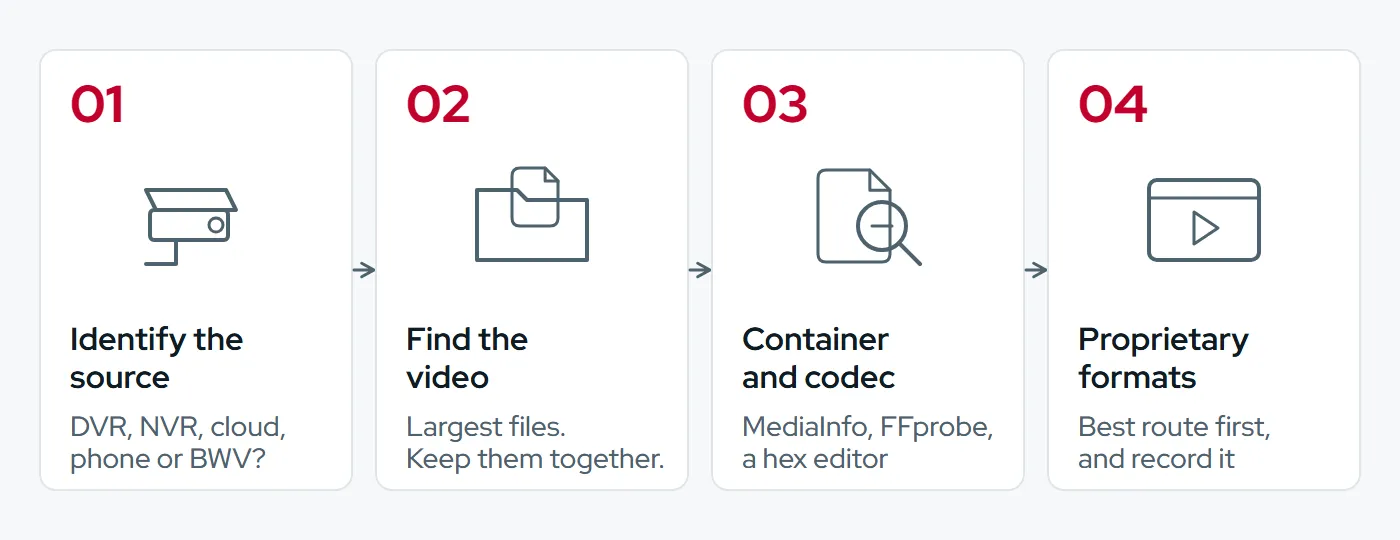
Step 1: Work out what kind of source you’re holding
Before opening anything, establish where the footage came from and how it was exported. The source type tells you more about the likely format than the file extension does.
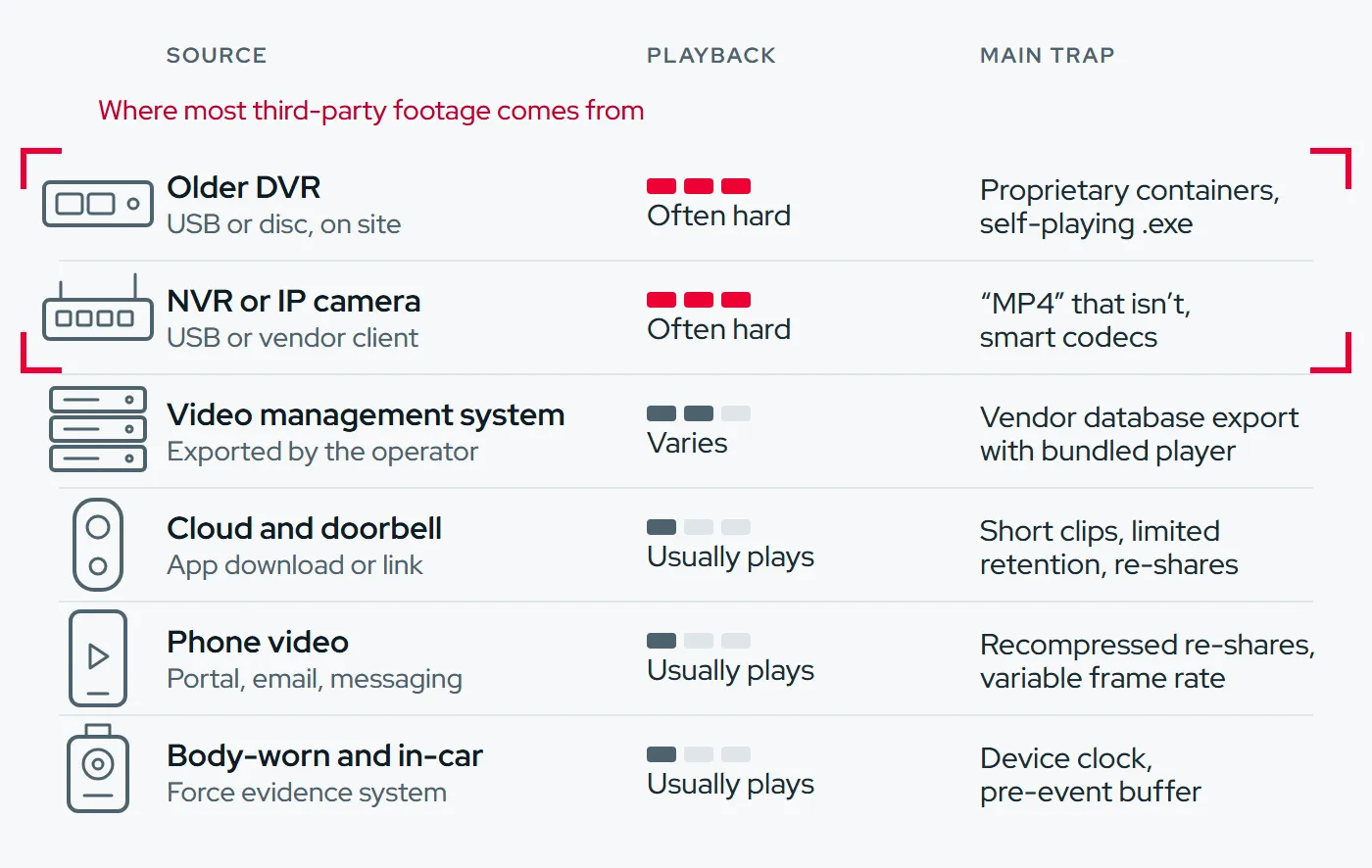
| Source | How it usually arrives | Typical formats | Check first |
|---|---|---|---|
| Older DVR | USB stick or disc exported on site | Proprietary containers (.264, .dav, .h264, .exe self-players), sometimes AVI with a non-standard codec | Whether the DVR offered a player or “backup with player” option |
| NVR or IP camera system | USB export, or download via the manufacturer’s client software | MP4 or AVI that may carry a proprietary header; native formats such as Dahua .dav; H.264, H.265 and “smart” codec variants | Whether the export is in native or “standard” mode, and whether the player was exported too |
| Video management system (council, transport, large retail) | Export from the VMS client, often by the system operator | Vendor database exports with a bundled player (e.g. Genetec .g64/.g64x, Milestone XProtect format), or MP4/MKV | Whether a signed or verifiable export was produced |
| Cloud and doorbell cameras | Owner downloads from the app or web portal, or shares a link | MP4 (H.264 or H.265), short event clips rather than continuous recording | Whether the clip is the original download or a re-share via messaging apps |
| Public-submitted phone video | Upload portal, email, messaging app, or the phone itself | MP4/MOV, H.264 or HEVC, often variable frame rate | Whether it’s the original file or a compressed re-share |
| Body-worn and in-car video | Exported from the force’s evidence management system | MP4 with system metadata and audit trail | Usually plays; check timestamps and audit records |
The hardest files still come from the first two rows: low-cost DVRs and NVRs in shops, petrol stations and homes. That’s also where the bulk of third-party footage comes from.
Step 2: Find the actual video in the export
The advice from 2013 still holds: the video files are usually the largest files on the media. A folder-size tool such as TreeSize Free will find them quickly in a deep folder tree.
A few things have changed or become more important:
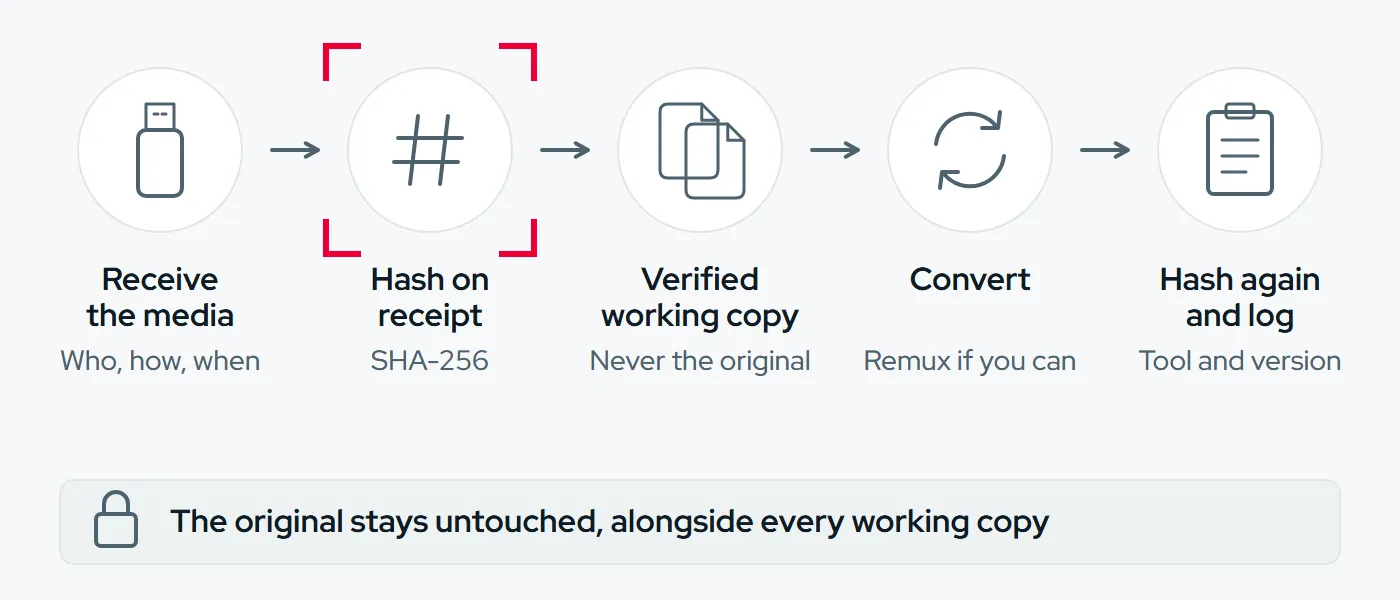
- Work on a copy, never the original. Hash the media as received (SHA-256 is the usual choice) before you open anything, and work on a verified copy.
- Keep the export together. Many NVR and VMS exports split video, index and metadata into separate files. A video file separated from its index can lose its timestamps or refuse to play at all.
- Is it one file per camera, many short files per camera, or a large multiplex file? Some systems write a file per channel; others multiplex every camera into one stream that only the native player can separate.
- Treat bundled executables with caution. Self-playing .exe exports and bundled players are still common. They are also a malware risk, which is covered in the integrity section below.
- Look for the player. If a player or codec was exported alongside the footage, note its name and version. It is the fastest route to playback and worth keeping in your player library.
Step 3: Identify the container and codec
In 2013 the key question was which AVI codec a file needed. Today the more common trap is a file that claims to be a standard format but isn’t. Many NVRs write files with an .mp4 extension that standard players reject or play badly.
Three tools cover most of this step:
- MediaInfo remains the quickest way to see the container, codec, resolution, frame rate and duration. It is still actively maintained. GSpot, which we recommended in 2013, has not been developed for many years and has been overtaken by MediaInfo.
- FFprobe (part of the free FFmpeg toolkit) gives the same information from the command line, plus frame-level detail such as timestamps and frame types. It is also what many modern tools use internally, so if FFprobe can’t read a file, most free players won’t either.
- A hex editor such as HxD shows the file’s first bytes, which usually reveal the real format regardless of the extension.
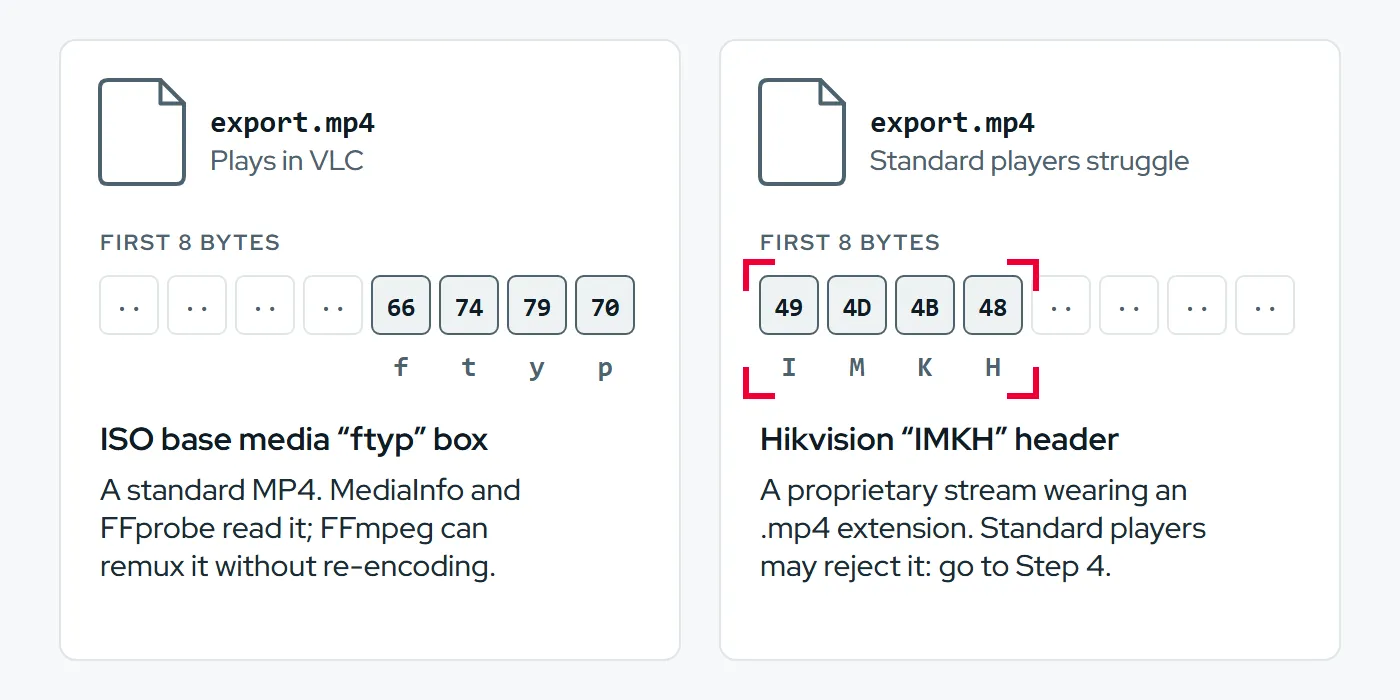
If MediaInfo and FFprobe both recognise the container and codec, the file will usually play in VLC or convert cleanly with FFmpeg. If they don’t, you’re almost certainly dealing with a proprietary format: go to Step 4.
H.265 and “smart” codecs. Most current NVRs record in H.265 (HEVC), and many offer manufacturer-branded variants such as H.264+ and H.265+. These reduce storage by varying the bitrate and frame rate when little is happening. Standard players often handle them poorly, showing frozen frames, wrong durations or broken seeking, even when the codec is correctly identified.
Step 4: Deal with proprietary formats
Proprietary formats remain the hard core of the problem. The options below run roughly from best to worst for evidential quality; work down the list until one succeeds, and record which route you used.
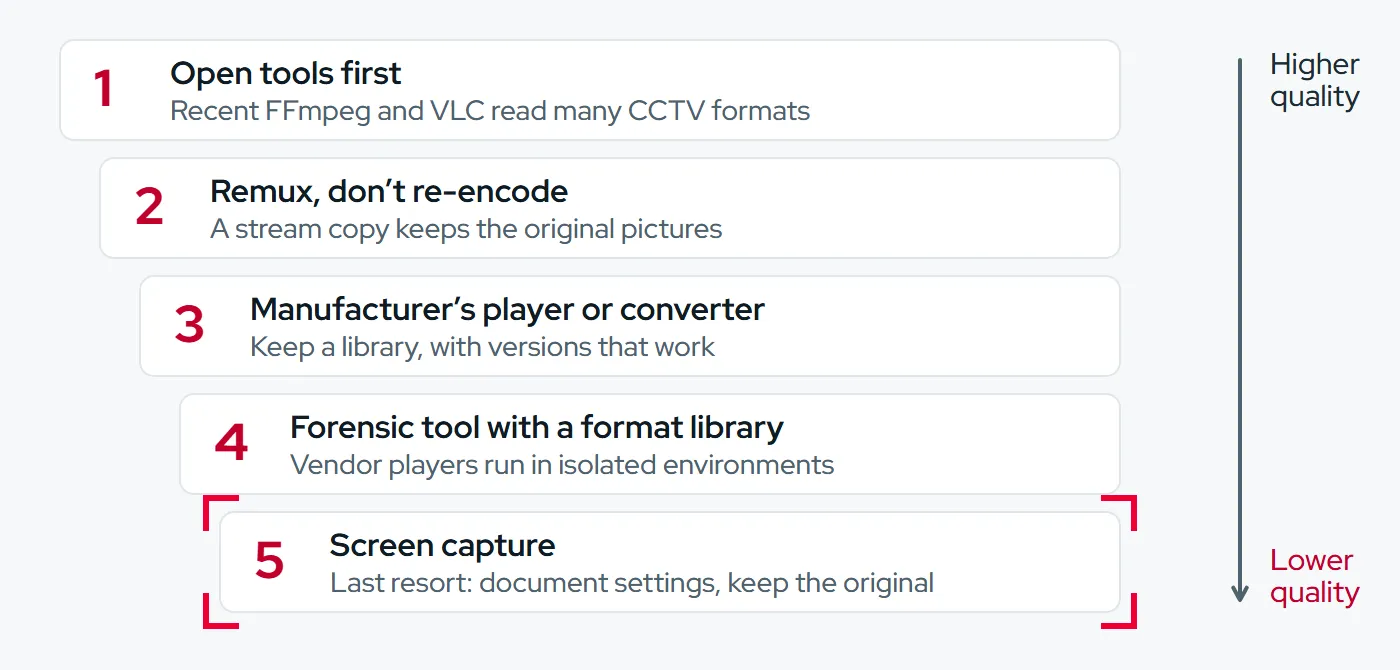
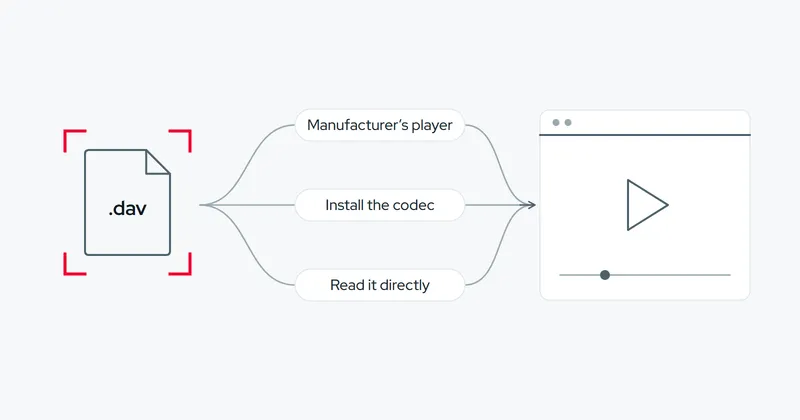
- Check whether open tools now support it. This is the biggest change since 2013. FFmpeg has steadily added support for CCTV formats; for example, version 4.2 (2019) added demuxers for Dahua’s DHAV streams and the IFV format. A format that needed a vendor player ten years ago may now open in VLC or convert directly with FFmpeg.
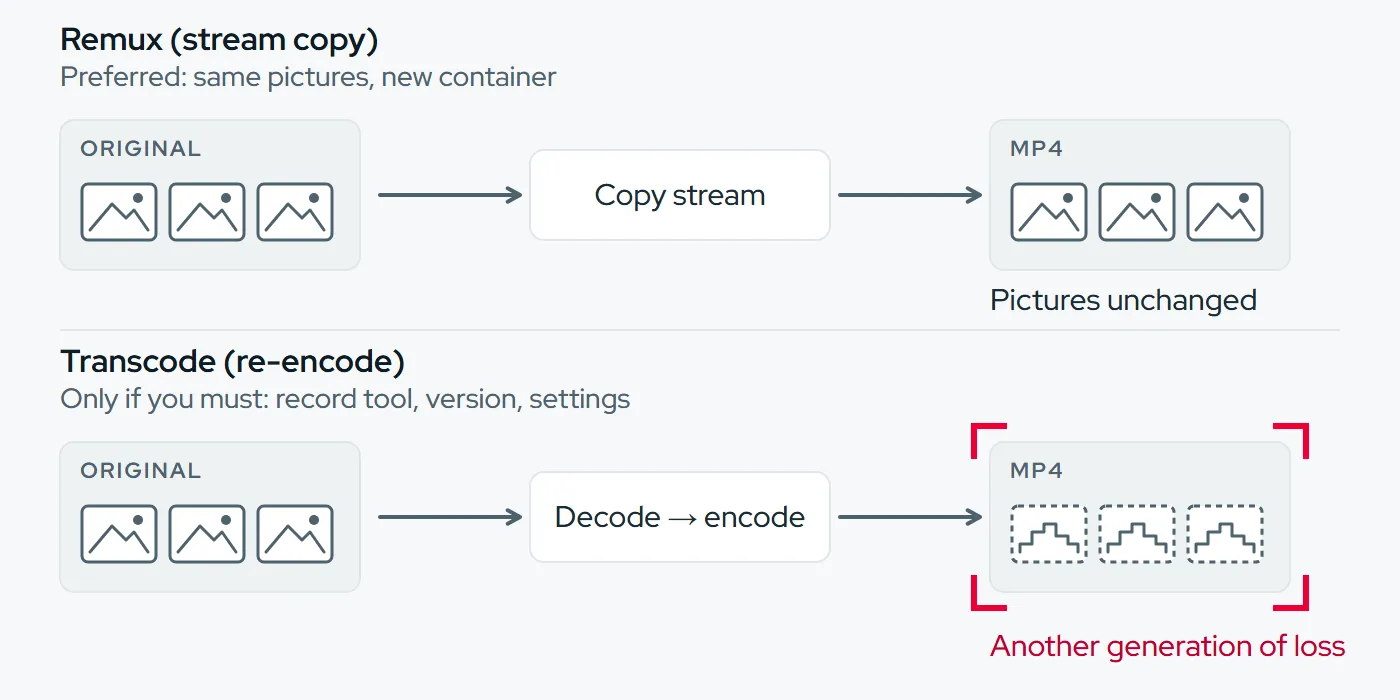
- Remux rather than re-encode. Where a tool can read the video stream, copy it into a standard container (an FFmpeg “stream copy”) instead of transcoding it. Remuxing keeps the original compressed pictures unchanged; transcoding adds a further generation of compression loss.
- Use the manufacturer’s player or converter. Most large manufacturers publish a player that can also export to a standard format, such as Hikvision’s VSPlayer. Keep a library of these with notes on which versions work, as the original article recommended.
- Use a forensic tool with a format library. Commercial video analysis tools now maintain large libraries of proprietary formats and players. Kinesense Review, for example, runs vendor players in isolated virtual environments so footage can be ingested without installing unknown software on a force PC.
- Screen capture, as a last resort. If the only working player can’t export, capture its output. Expect reduced quality. Document the capture settings and keep the original file, so the capture can be checked against it later.
For more on matching a file to its player, or installing the codec a file needs, see How to play proprietary CCTV and DVR video files.
Source-specific notes
NVRs and IP camera systems
NVRs have largely replaced the older DVRs of 2013, and the market has consolidated around a smaller number of large manufacturers. But a single manufacturer’s “MP4” can vary between firmware versions, and smart codecs (H.264+, H.265+) cause frozen frames and wrong durations in standard players.
Where you can influence the export, ask for the native format and a standard-format export, and export the manufacturer’s player alongside. If the system offers a signed or verifiable export, use it.
Cloud and doorbell cameras
Home and small-business cameras increasingly store footage in the cloud, so you’ll often receive a clip the owner downloaded through an app rather than an export from a recorder.
- Clips are short and retention is limited. Many services keep only event clips, for a period that depends on the owner’s subscription. Request footage early.
- The download is usually standard MP4, so playback is rarely the problem. The issues are completeness and provenance: whether the clip is the full event, and whether it has been trimmed or re-shared.
- Check timestamps carefully. Burned-in times, file metadata and the app’s display may use different time zones or clocks.
- Request routes vary by country. In the US, Ring reintroduced police requests in 2025 through a “Community Requests” feature run with Axon, after withdrawing its earlier “Request for Assistance” tool in 2024. In the UK, most forces now ask owners to upload through a digital evidence portal, and some run camera registration schemes so they know who to ask.
Public-submitted phone video
Phone footage is now one of the most common sources, arriving through force upload portals, email or messaging apps.
- Ask for the original file. Video forwarded through messaging apps is usually recompressed and stripped of metadata. The original from the phone’s camera roll is far better evidence.
- Expect HEVC and variable frame rate. iPhones record MOV files in HEVC by default, and phone video generally uses variable frame rates. That matters for any timing or speed analysis, and some older tools handle it poorly.
- Preserve the submission record. Note how and when the file was received and from whom, alongside its hash.
Body-worn and in-car video
Body-worn footage is the one source that usually arrives in good order: standard MP4 from the force’s own evidence management system, with an audit trail. The checks here are about context rather than format: confirm the device clock, note any pre-event buffer, and keep the system’s audit record with the clip.
Dash cams
Dash cam footage is generally standard MP4 and plays easily. UK forces use dedicated portals such as the National Dash Cam Safety Portal and force-specific schemes.
Integrity, validation and security
In 2013, “getting it to play” was the goal. Today, how you got it to play is part of the evidence.
Regulation. In England and Wales, the Forensic Science Regulator’s Statutory Code of Practice has applied since 2 October 2023, with version 2 in force from 2 October 2025. It covers recovery and processing of CCTV footage, and the NPCC’s Framework for Video Based Evidence sets out how forces apply it.
In practice, routine replay and recovery should use force-approved methods and tools, while specialist processing and analysis (enhancement, comparison, timing and speed analysis) needs accredited, competent practitioners. Other jurisdictions have similar expectations, for example through SWGDE best-practice documents in the US.
What that means at the desk:
- Hash on receipt, and again after any conversion. Record both.
- Prefer lossless routes. Native playback or a stream copy keeps the original pictures; a transcode changes them. If you must transcode, record the tool, version and settings.
- Use approved tools and methods. A converter found on a forum may work, but it won’t be validated for evidential use.
- Check timing independently. Burned-in timestamps, container timestamps and the recorder’s clock often disagree. Note the recorder’s clock offset at recovery if you can. Variable frame rates and smart codecs make frame counts an unreliable measure of elapsed time.
- Keep the original alongside any working copy, so anyone can go back to it.
See also the importance of the audit chain for video evidence.
Standards: the common format arrived, the adoption didn’t (yet)
In 2013 we said a proper industry standard was years away. It arrived, but it hasn’t yet reached most of the recorders investigators actually meet.
- The standard exists. The ONVIF Export File Format defines an MP4-based export with surveillance metadata (recording equipment, export time, export operator) and an optional digital signature for chain of custody.
- It has official backing. In 2019, NIST recommended it in NISTIR 8161 revision 1, its CCTV video export profile developed with the FBI. That profile also calls for per-frame UTC timestamps and a record of the recorder’s clock offset at export. The IEC adopted the format in IEC 62676-2-32:2019.
- It’s still being developed. ONVIF’s June 2026 release added support for its Media Signing specification to the export format (specification history).
- Adoption is the gap. Conformance is voluntary, and the low-cost DVRs and NVRs that produce most third-party footage rarely offer it. Until procurement rules, insurers or regulators require it, the long tail of proprietary formats will remain.
Toolkit and links for 2026
A compact free toolkit covers most first-line work; specialist and commercial tools take over for proprietary formats and evidential processing.
| Tool | Use it for | Link |
|---|---|---|
| MediaInfo | Container, codec, frame rate and duration at a glance | mediaarea.net |
| FFmpeg / FFprobe | Frame-level inspection, lossless remuxing, conversion | ffmpeg.org |
| VLC | Quick playback of standard and some CCTV formats | videolan.org |
| HxD | Reading file signatures and headers | mh-nexus.de |
| TreeSize Free | Finding the video in large folder trees | jam-software.com |
| NPCC Framework for Video Based Evidence | UK process guidance for recovery and handling | College of Policing library |
| ONVIF Export File Format | The standard export specification | onvif.org |
What happened to the 2013 resources
| 2013 resource | Status in 2026 |
|---|---|
| Media-geek.com | Closed in late 2013; its successor, DME Resources, has since closed too |
| GSpot | No longer developed; use MediaInfo |
| MediaInfo | Actively maintained; moved to mediaarea.net |
| fourcc.org | Still online but no longer maintained, and now carries gambling advertising; not recommended |
| FBI DVR database (fbivipr.org) | No longer online, and we could not confirm it ever launched; the FBI’s work instead fed into NIST’s CCTV export profile |
| CCTVcodec.com | No longer online |
| HxD, TreeSize Free, VLC | Still current |
Sources
- Dr Mark Sugrue, The CCTV File Format Minefield (Kinesense, 2013), the original article
- ONVIF Export File Format specification
- ONVIF: specifications adopted by NIST (2019)
- NIST CCTV Digital Video Export Profile
- ONVIF specification history
- Forensic Science Regulator Code of Practice, version 1
- Forensic Science Regulator Code of Practice, version 2
- NPCC Framework for Video Based Evidence v3.1
- FFmpeg news: 4.2 release adds dhav and IFV demuxers
- FFmpeg user list on Hikvision IMKH files
- Consumer Reports on Ring Community Requests
- NBC News on Ring ending Request for Assistance (2024)
- Thames Valley Police digital evidence portal
- North Yorkshire Police camera registration
- National Dash Cam Safety Portal
- VideoHelp: GSpot no longer developed
- Forensic Photoshop blog on the end of Media-Geek (2013)
Frequently asked questions
Why won't my CCTV footage play?
Most CCTV recorders write proprietary containers or codecs, and many NVRs write files with an .mp4 extension that standard players reject or play badly. Smart codecs such as H.264+ and H.265+ also cause frozen frames, wrong durations and broken seeking. Check the file with MediaInfo, FFprobe or a hex editor to see what it really is.
How can I tell what format a CCTV file really is?
MediaInfo shows the container, codec, resolution, frame rate and duration. FFprobe, part of FFmpeg, gives the same from the command line plus frame-level detail. A hex editor such as HxD shows the file's first bytes, which usually reveal the real format whatever the extension says.
Should I convert CCTV footage to MP4?
Remux rather than re-encode where you can. An FFmpeg stream copy into a standard container keeps the original compressed pictures unchanged; transcoding adds a further generation of compression loss. If you must transcode, record the tool, version and settings, and hash the file before and after.
Is it safe to run the player that came with a CCTV export?
Treat it with caution. Vendor players and self-executing exports are unsigned software from unknown sources. Run them in an isolated virtual machine or a tool that sandboxes players, scan media before opening it, and never run them on a networked force PC.
Is there a standard CCTV export format?
Yes. The ONVIF Export File Format defines an MP4-based export with surveillance metadata and an optional digital signature. NIST recommended it in NISTIR 8161 revision 1 in 2019, and the IEC adopted it as IEC 62676-2-32:2019. Conformance is voluntary, though, and the low-cost DVRs and NVRs behind most third-party footage rarely offer it.
What does the Forensic Science Regulator's Code of Practice mean for CCTV?
In England and Wales the Code has applied since 2 October 2023, with version 2 in force from 2 October 2025. It covers recovery and processing of CCTV footage. Routine replay and recovery should use force-approved methods and tools, while specialist processing and analysis needs accredited, competent practitioners.